FlinzyShare
Set up a second screen at your event. Guests browse their photos, scan a QR code, and instantly save their favorites — without crowding the booth.


Available for iPad · iPhone · Android
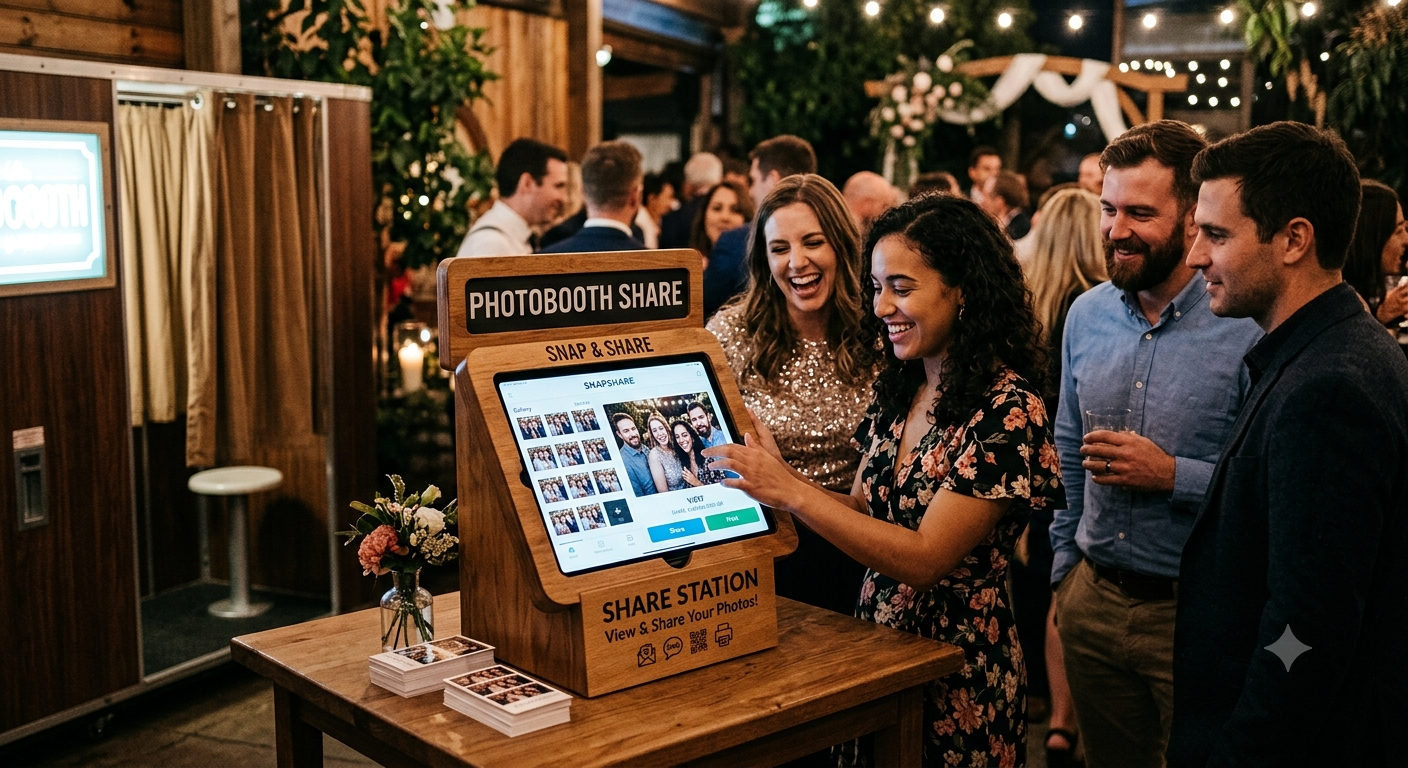
Share Station
Guests browse and share their photos via QR code, native share sheet, or AirDrop — all on a dedicated second screen.
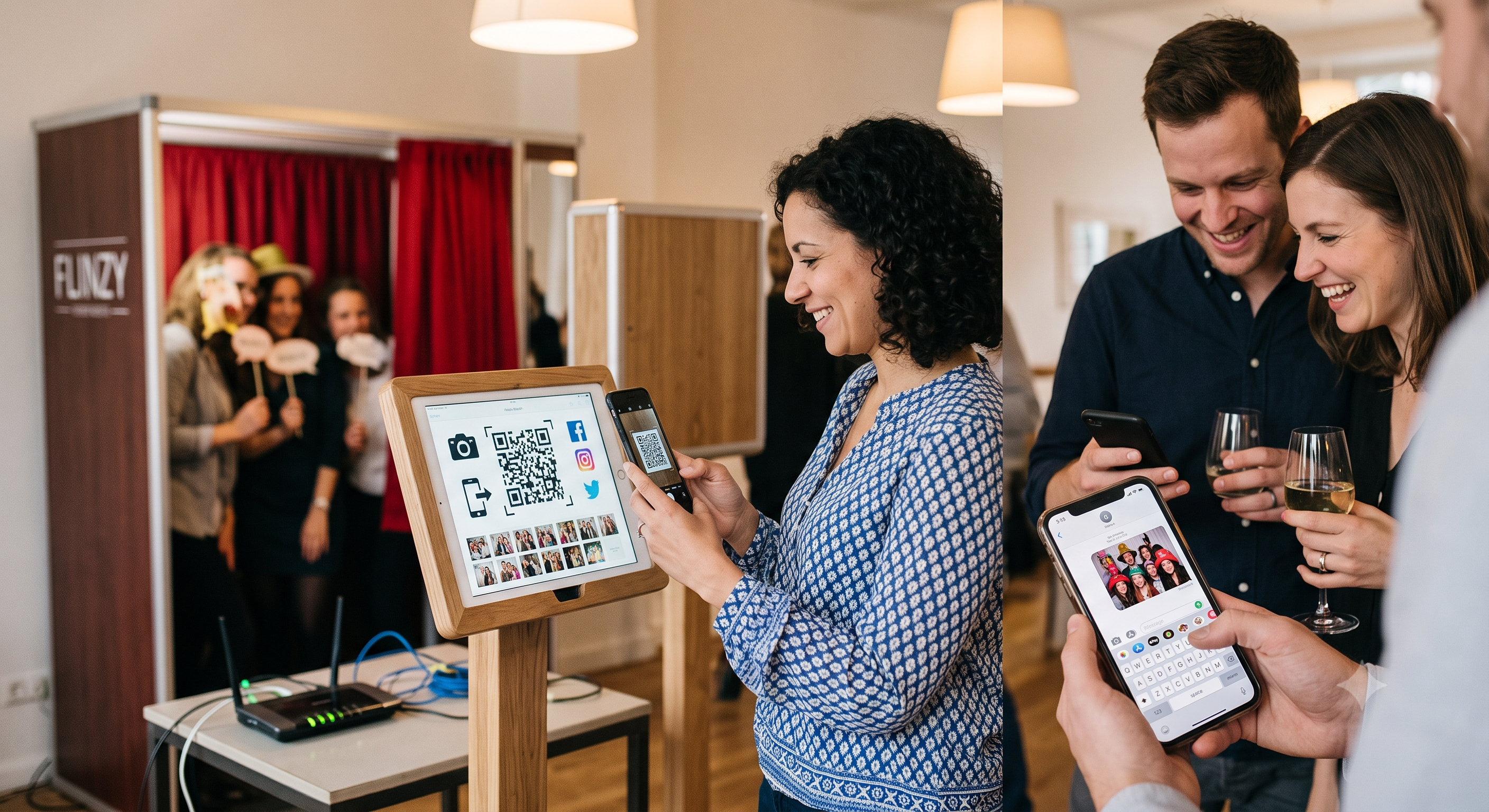
QR Code Download
Every photo gets a unique QR code. Guests scan with any phone camera — no app download required.
Slideshow
Loop all event photos in a beautiful full-screen slideshow on any TV or external display at the venue.
Free up your booth. Keep guests happy.
FlinzyShare connects to your Flinzy Photobooth over local WiFi — no internet required. Set it up on a second iPad, iPhone, or Android device at the exit, and guests can find their photos, scan a QR code, and save them instantly.
- Works without internet — local WiFi only
- Guests scan QR to save directly to camera roll
- Native share sheet for social media
- Kiosk mode locks the screen for public use
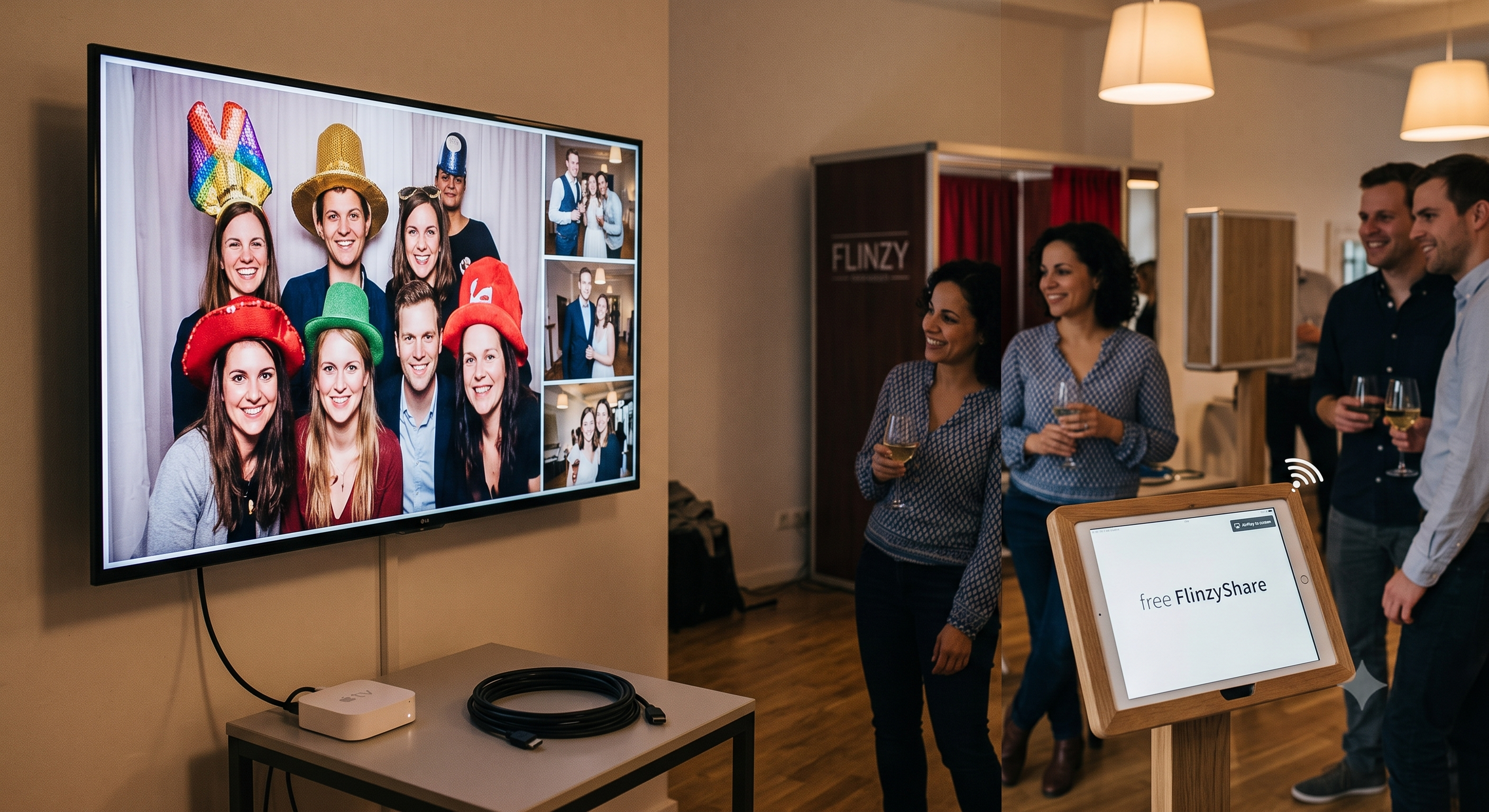
Showcase your guests on the big screen.
Loop all event photos in a beautiful full-screen slideshow. Mirror to any TV via AirPlay or a direct HDMI cable — no extra hardware needed.
- Full-screen auto-playing slideshow
- AirPlay to Apple TV or compatible smart TVs
- Direct HDMI connection supported
- Portrait and landscape modes
See FlinzyShare in Action
Up and running in 3 steps
Run Flinzy Photobooth
Create an event and enable Share Station in your event settings. Make sure both devices are on the same WiFi network.
Open FlinzyShare
Download FlinzyShare on a second iPad, iPhone, or Android device. Tap "Scan QR" and scan the pairing code shown in your Flinzy Photobooth event.
Place it at the exit
Enable Kiosk Mode to lock the screen, set it on a stand at the exit, and let guests browse and share on their own.
Have Questions?
What do I need to run FlinzyShare?
An iPad, iPhone, or Android tablet/phone connected to the same WiFi network as your Flinzy Photobooth device. No internet connection required.
Does it work without internet?
Yes. FlinzyShare connects directly to Flinzy Photobooth over local WiFi. Guests can browse and download photos even at venues with no internet.
Can guests download photos without an app?
Yes. Each photo has a QR code guests can scan with their phone's built-in camera to save it directly to their camera roll.
Can it run as a kiosk?
Yes. Kiosk Mode hides the back button so guests can't exit the app. Tap the top-left corner to unlock and access settings.
Does FlinzyShare require a separate subscription?
FlinzyShare is free to download. It requires an active Flinzy Photobooth subscription on the booth device.
Can I run slideshow on a TV?
Yes. Use AirPlay to mirror to an Apple TV or compatible smart TV, or connect directly with an HDMI cable.
Free to download
Requires Flinzy Photobooth running on a separate device on the same WiFi network.