How to Print Guest Names and Stats on a Trading Card
Guest Input on a Trading Card
Guest Input collects information from guests during their session — a name, a jersey number, a team — and prints each answer onto that guest's own card. Every card comes out personalised.
You need a trading card layout first. If you haven't built one yet, start with the Trading Card Layout guide, then come back here.
1. Turn On Guest Input
Open your event, stay on the Setup tab, and tap Guest Input in the bottom bar.
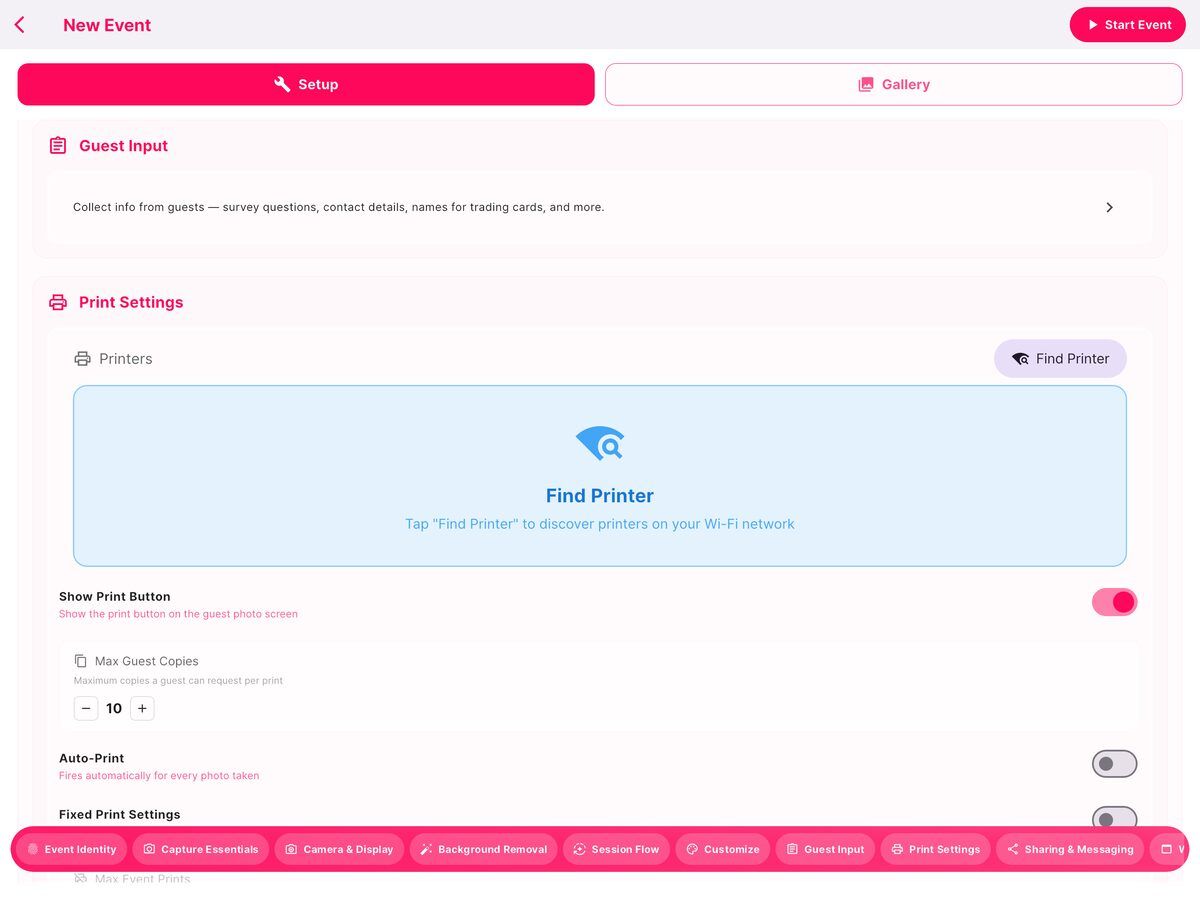
The Guest Input page starts switched off with no questions.
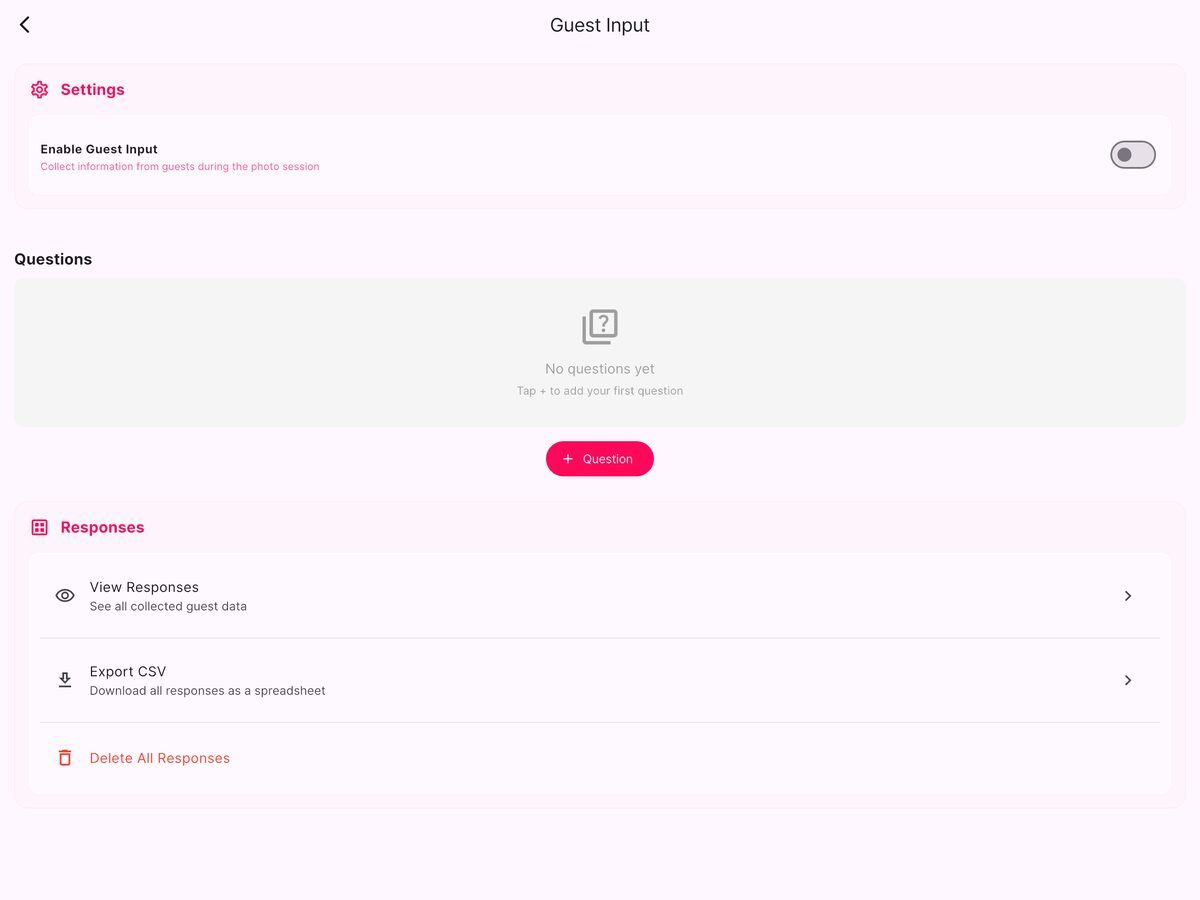
Turn on Enable Guest Input.
2. Choose When Guests Answer
Once enabled, pick When to show:
| Option | Use it when |
|---|---|
| Before taking photos | Trading cards — the guest fills in their name and stats, then steps into the booth |
| After taking photos | Lead capture — collect an email or phone number in exchange for the photo |
For trading cards, choose Before taking photos.
3. Add Your Questions
Tap + Question for each piece of information you want on the card.
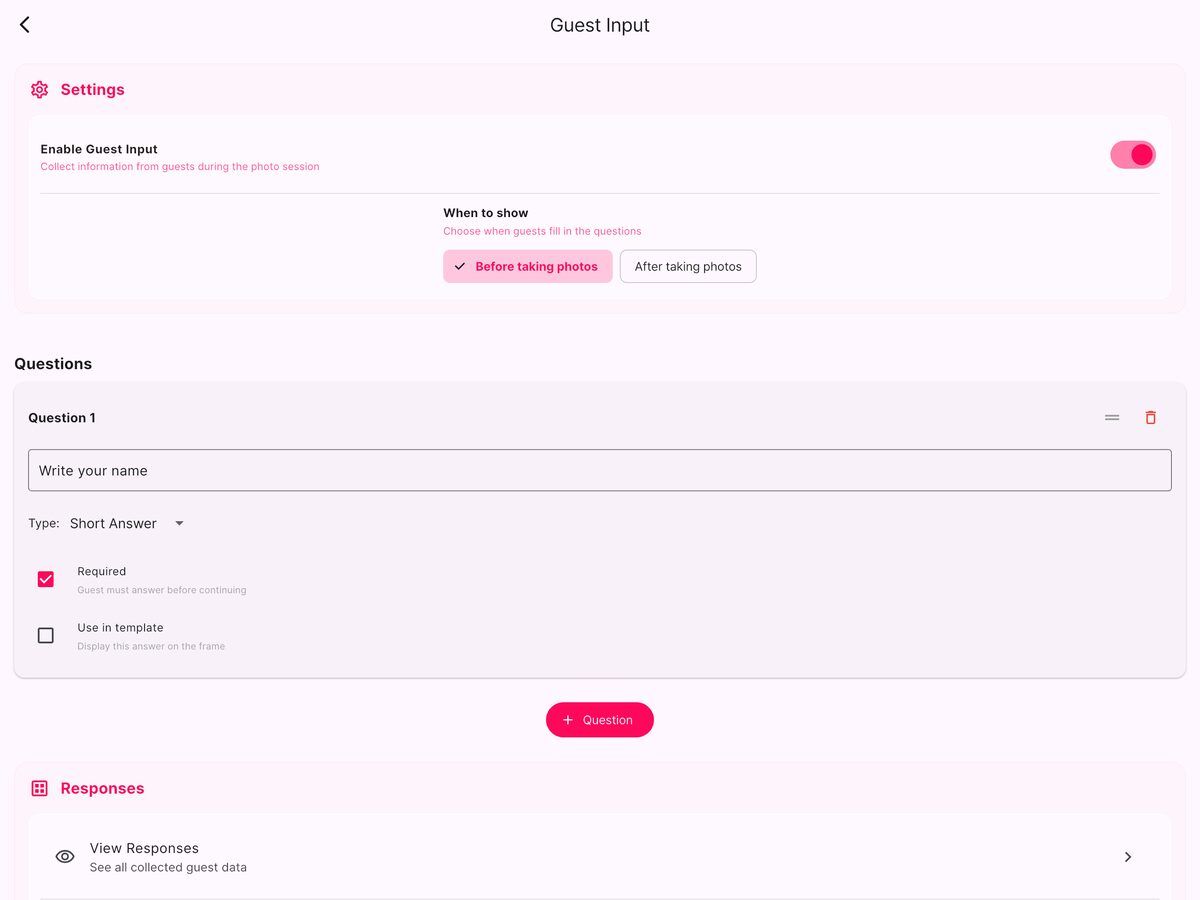
Each question has:
- The question text — what the guest sees, e.g. "Write your name"
- Type — Short Answer for free text, or Multiple Choice for a fixed list of options
- Required — the guest can't continue without answering
⚠️ Question order is permanent
Answer fields on your card are linked to questions by position, not by name. Answer 1 always shows whatever question is currently first.
If you reorder or delete a question after building your card, every field silently shifts. Delete your first question and
Answer 1starts printing the second question's response instead — with no warning and no error.Decide your questions and their order before you place fields on the template.
4. Open Your Trading Card Template
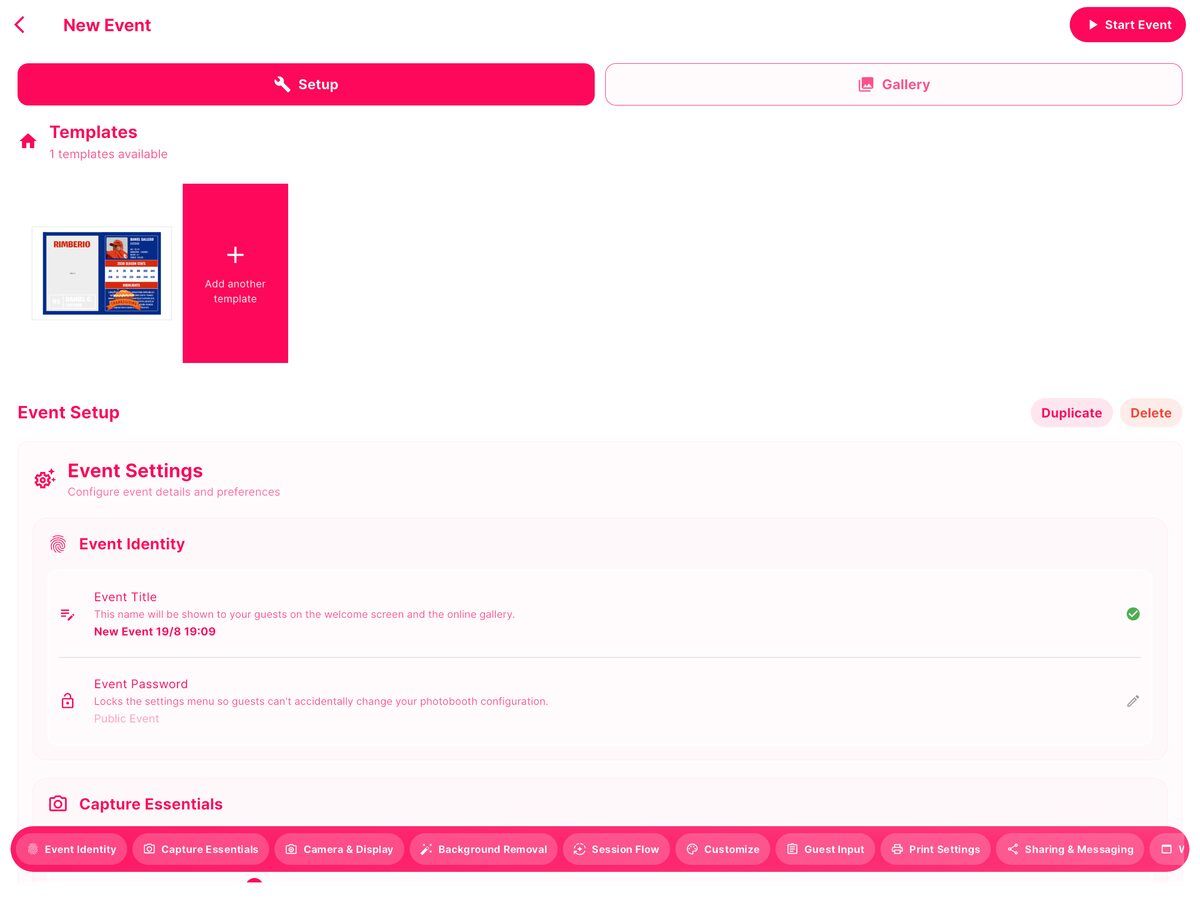
Go back to Setup and tap your saved trading card template to open it in the frame editor.
5. Place an Answer Field
Tap Guest Input in the editor toolbar. You'll get a list of Answer 1 through Answer 10.
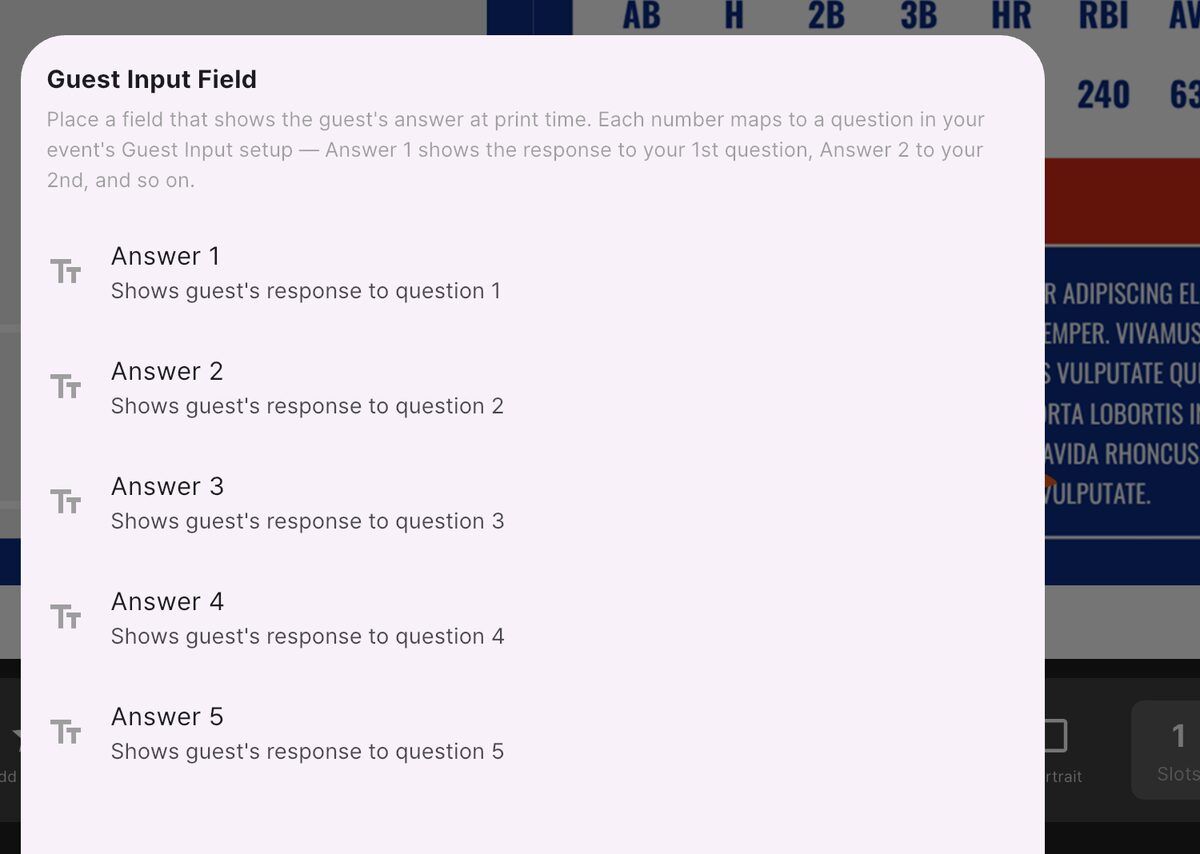
Each number maps to a question by position — Answer 1 prints the response to your first question, Answer 2 to your second, and so on.
A green tick means that answer is already placed on this template. It's a reminder, not a block — tapping it again adds a second copy of the same field.
Tap the answer you want. A placeholder appears on the canvas reading [Answer 1].
6. Position and Style It
The placeholder behaves like any other text element. Drag it where the name should print, then use the toolbar to set it up.
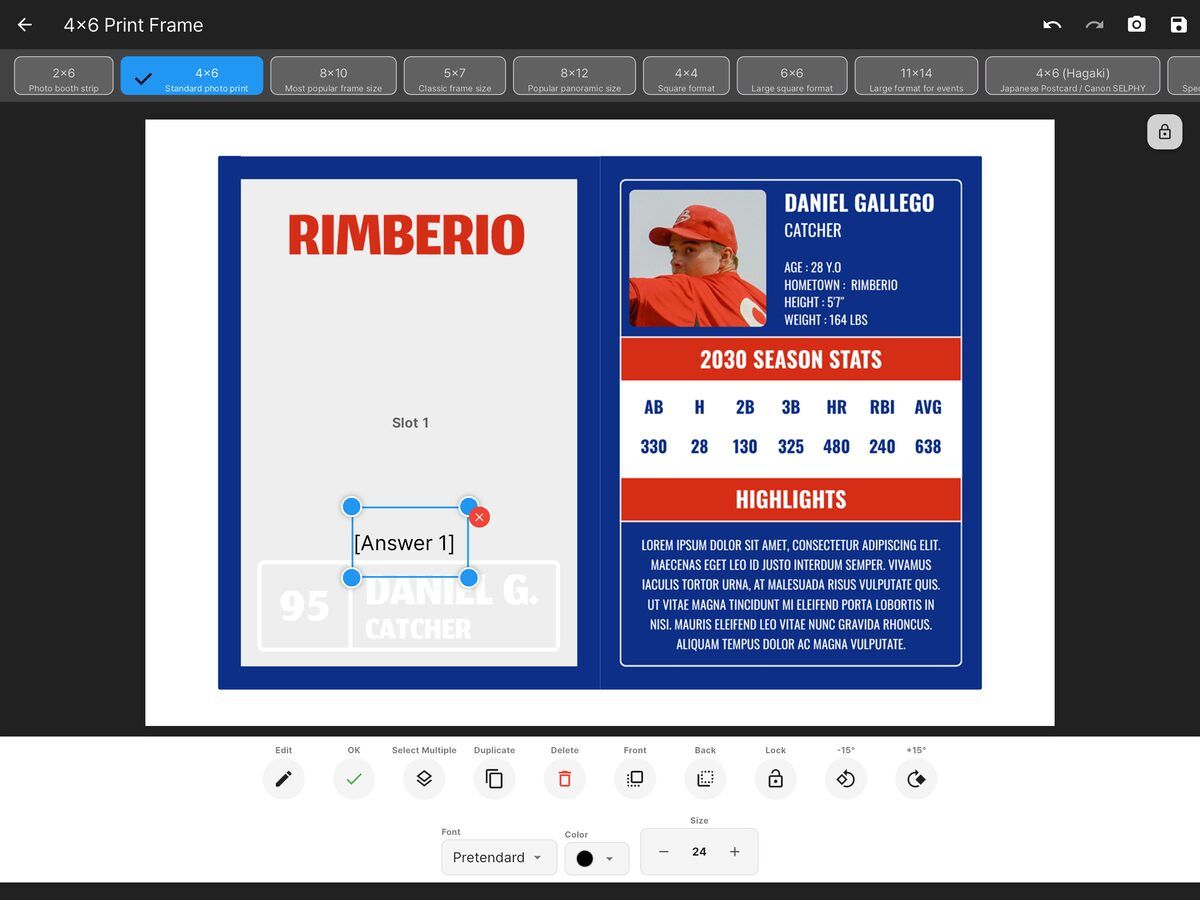
| Control | What it does |
|---|---|
| Font | Defaults to Pretendard |
| Color | Defaults to black — switch to white for dark cards |
| Size | Defaults to 24 |
| Front / Back | Layer the text above or below your artwork |
| -15° / +15° | Rotate |
| Lock | Prevents accidental dragging once positioned |
The [Answer 1] text is only a placeholder. At print time it's replaced with what the guest actually typed.
Match your artwork. Size the field to the space your design leaves for it, and remember a long name takes more room than a short one. Test with the longest name you'd expect.
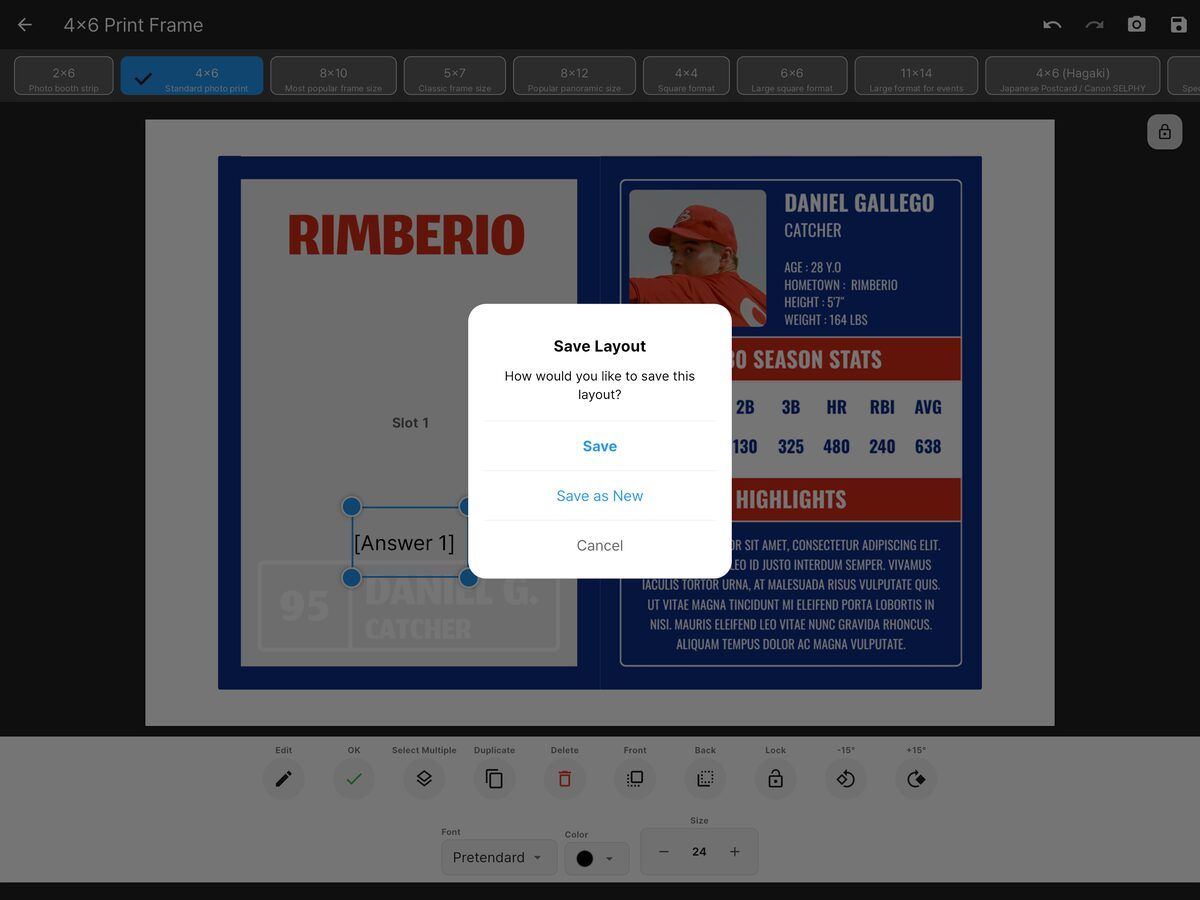
7. Save
Tap the save icon and choose Save to update the template, or Save as New to keep the original.
What Guests See
With Before taking photos set, the guest answers your questions on the booth screen, takes their photos, and their card prints with their own details on it.
⚠️ Unanswered fields vanish
If a guest doesn't answer a question, the matching field is removed from the card entirely — no blank space, no placeholder, nothing. The layout prints as if the field was never there.
If a field is essential to how your card looks, mark that question Required.
Viewing What You Collected
Everything guests type is saved. On the Guest Input page:
- View Responses — see all collected guest data
- Export CSV — download every response as a spreadsheet
- Delete All Responses — clear the data
Handy for sports events and activations where the answers are worth keeping after the cards are printed.
Tips
- Keep questions short. Guests type on a booth screen, often in a queue. "Your name" beats "Please enter your full name as you'd like it to appear".
- Use Multiple Choice for teams. Fewer typos than free text, and it prints consistently.
- Do a full test run. Answer your own questions, take a photo, and print one card before the event starts.
- Lock your fields once positioned so a stray tap doesn't move them mid-event.
Need the layout itself? See the Trading Card Layout guide. Still stuck? Contact support.