How to Connect an External Camera (DSLR, Mirrorless, Webcams)
External Camera Support
Connect a professional camera to Flinzy Photobooth to deliver stunning, high-quality photobooth experiences with superior sharpness, color accuracy, and low-light performance.
Currently Supported
- Canon EOS DSLR & mirrorless cameras
- Nikon DSLR & mirrorless cameras
- Sony DSLR & mirrorless cameras
- USB streaming cameras (micro, mini, USB-C)
- Webcams (Android only)
- Both iOS and Android
How to Connect Your Camera (DSLR & Mirrorless)
1. Check Your Connection Type
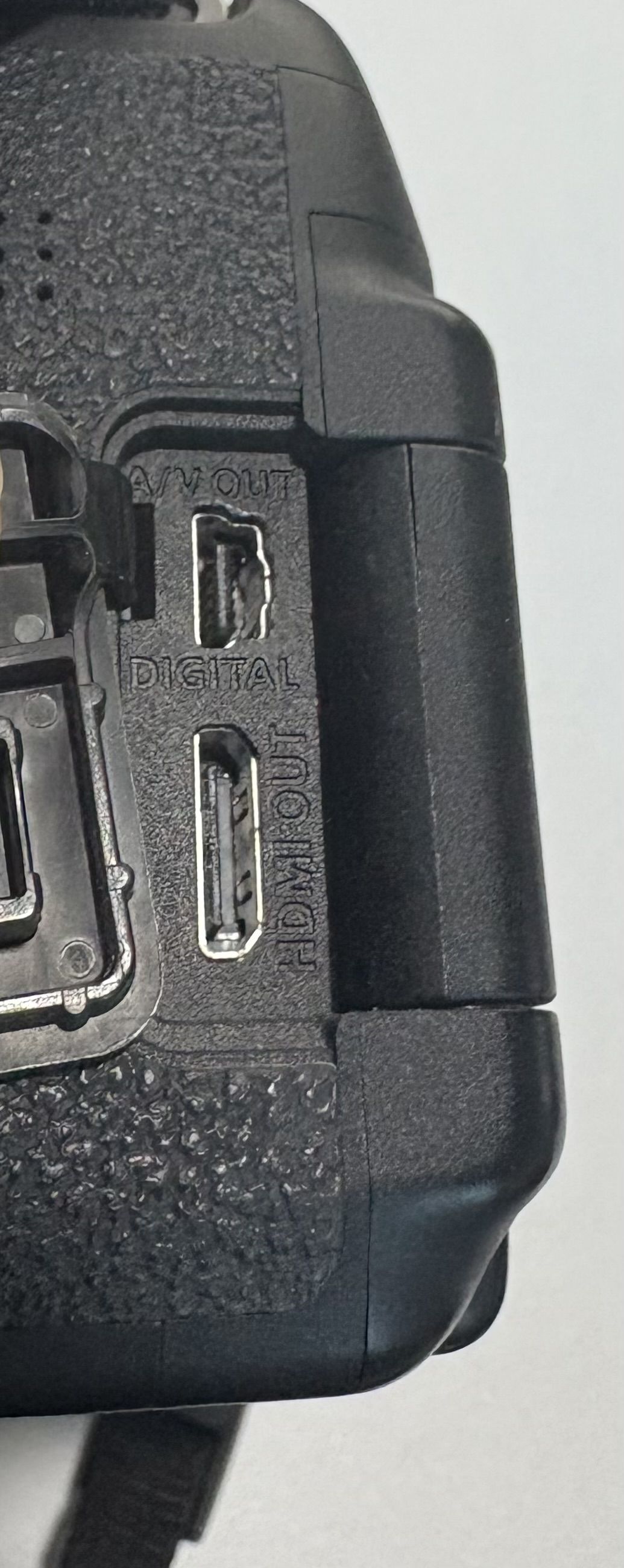
Identify the ports on both your iPad and camera:
- USB-C
- Lightning
- Mini-USB
- Micro-USB
2. Find the Right Connection
| iPhone/iPad with Lightning | iPhone/iPad with USB-C | |
|---|---|---|
| Camera with USB-C | Use Apple Lightning to USB 3 Camera Adapter | Connect directly USB-C to USB-C (no adapter needed) or use Apple USB-C Digital AV Multiport Adapter |
| Camera with Mini/Micro USB (USB-A cable) | Use Apple Lightning to USB 3 Camera Adapter | Use Apple USB-C Digital AV Multiport Adapter |
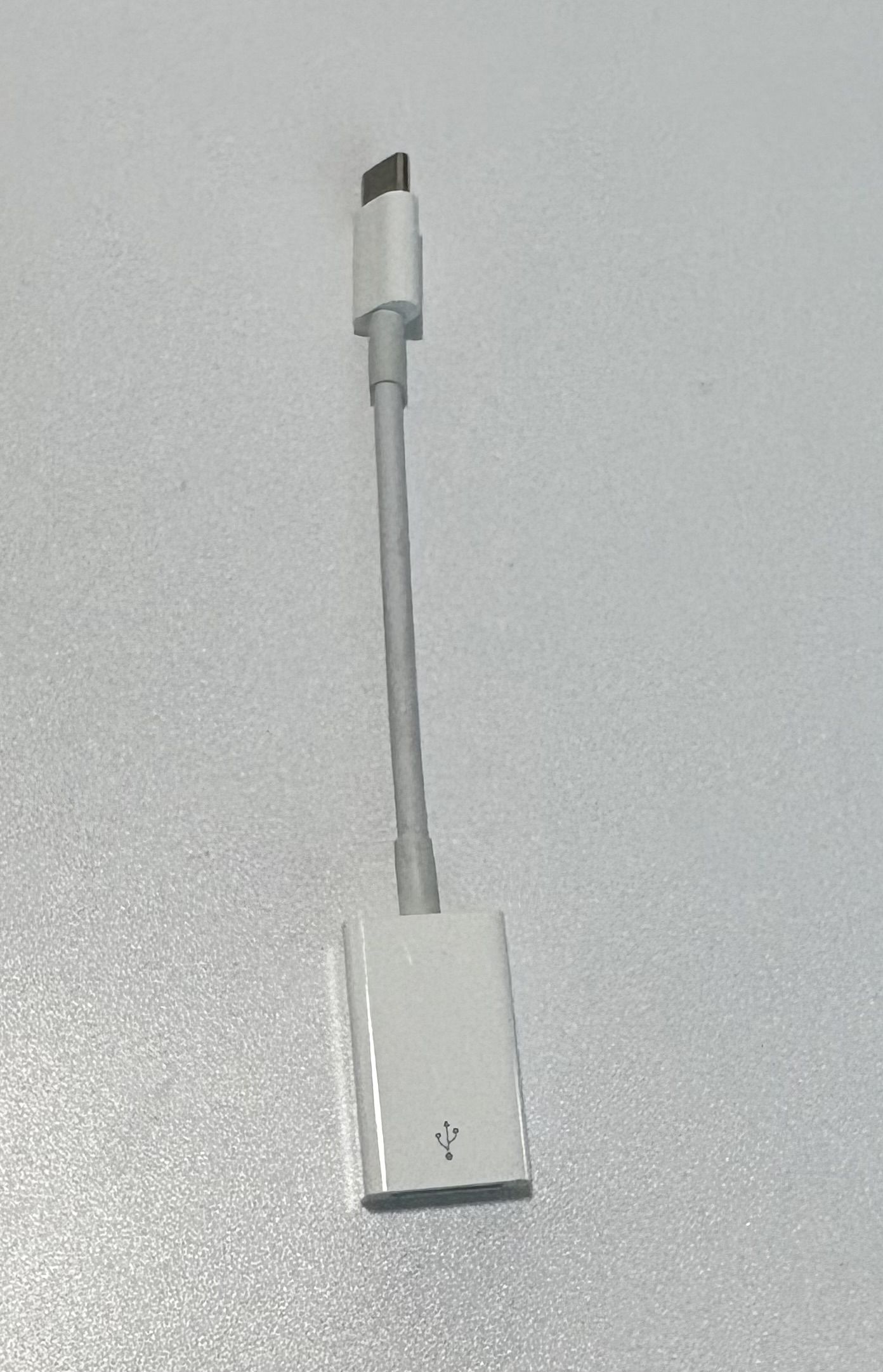
Recommended adapters:
- Apple Lightning to USB 3 Camera Adapter — for Lightning iPads/iPhones
- Apple USB-C Digital AV Multiport Adapter — for USB-C iPads/iPhones
3. Connect Your Camera
Connect your camera to the iPad or Android device using the appropriate cable and adapter.
4. Authorize the Connection
When prompted on your device and the app, allow the USB accessory connection.
5. Set Camera Mode
Set your camera to one of the following modes:
- PC Remote
- USB Streaming
- Set Aspect Ratio to 3:2 (required)
6. Open Flinzy Photobooth
Launch Flinzy Photobooth and navigate to the Camera screen.
7. Select External Camera
Choose your external camera from the camera selection menu.
Recommended Camera Settings
- Set camera to PC Remote or USB Streaming mode
- Use Small or Medium JPEG (S1/M1) — do not use RAW or RAW+JPEG
- Disable auto power-off (also called "Eco Mode")
- Turn OFF Image Review (also called "Review Duration")
- Turn ON Save to Smartphone if your camera has that option
- Set Aspect Ratio to 3:2 (required)
- Keep the camera screen on for monitoring
- Avoid placing objects too close to the lens (within 1 foot / 30cm)
Power Tips
- Use an AC power adapter for long sessions
- Keep spare batteries ready
- USB charging may not keep up during heavy use
- Monitor battery level regularly
Connection Modes Explained
USB Streaming
Best for live preview & instant capture
- Live viewfinder on iPad
- Instant capture
- Lower preview resolution
- Higher battery usage
PTP / PC Remote
Best for maximum photo quality
- Full-resolution photos
- Better battery efficiency
- Camera screen preview
- Slight transfer delay
Troubleshooting DSLR / Mirrorless Issues
Performance & Speed
- Use a fast memory card that meets or exceeds your camera's recommended read/write speed.
- Avoid slow or old SD cards — they are a common cause of lag and missed shots.
Storage Setup
- Format your memory card before every event to ensure it is empty and running optimally.
- Do not rely on deleting files manually — formatting is safer and cleaner.
Image Settings
- Set your camera to shoot Small or Medium JPEG (S1/M1), not RAW.
- Make sure RAW+JPEG is also turned off — having both on slows transfers significantly.
Connectivity
- Use a high-quality data cable between your camera and device.
- Cheap or damaged cables can cause unstable connections or delays.
USB Hub Issues
If using a USB hub, make sure it is:
- Powered (not passive)
- From a reliable brand
Unpowered hubs often lead to disconnects or slow performance.
Device Performance
- Close all unnecessary apps and background processes.
- Dedicate your device to running Flinzy Photobooth during the event.
If issues persist after these checks, the problem is usually hardware-related (cable, hub, or SD card) — start by swapping those first.
How to Connect a Webcam (Android only)
1. Get the Right Adapter
Use a USB-C to USB Adapter or USB OTG adapter for your Android device.
2. Connect Your Webcam
Plug the webcam into your Android device using the adapter.
3. Authorize the Connection
When prompted, allow the USB accessory connection.
4. Open Flinzy Photobooth
Launch Flinzy Photobooth and navigate to the Camera screen.
5. Select External Camera
Choose your webcam from the camera selection menu.